Accounting & Global Finance
Open Accounting in the healthcare Portal for the selected workspace. For restaurant and retail operations, use the separate POS accounting guide.
Review the ledger
- Confirm the workspace before interpreting balances.
- Review the four summary cards and Centralized General Ledger.
- Search the ledger or filter by source to find an entry. Check its date, description, source and amount together.
- If the ledger shows fewer entries than its total, use Load all; it loads up to 200 entries. A row missing from the loaded list does not prove the entry does not exist. Search or filter by source, and check the practice's records before adding a replacement entry.
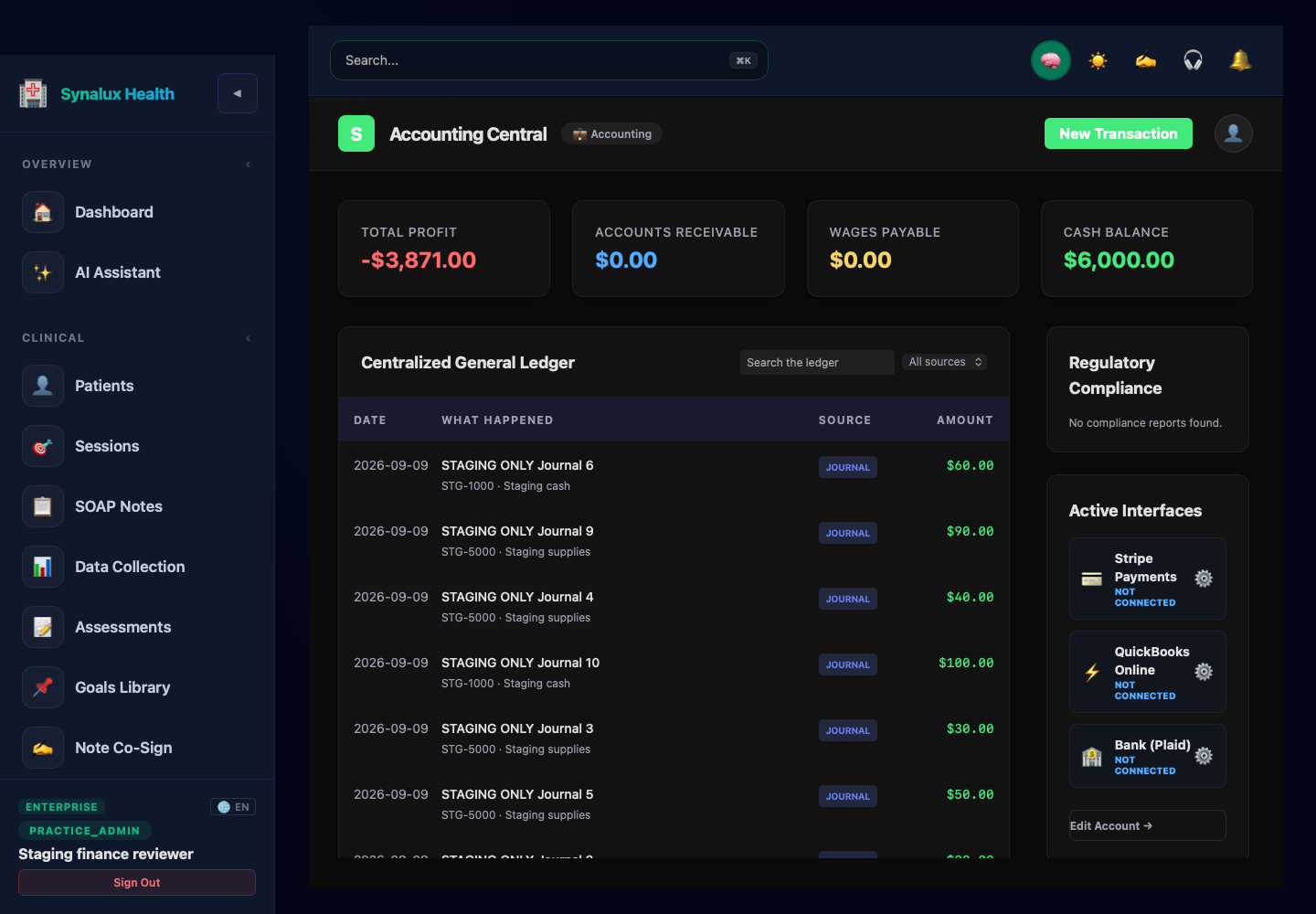
Open Accounting screenshot at full size
Synthetic local staging example captured on October 23, 2026. These are software demonstration records, not a practice's financial statements.
Add a manual transaction
Use New Transaction for an authorized manual entry. Review the date, description, and each line's account, debit and credit before saving. Find the saved entry in the ledger and confirm its details. Recording a manual entry is separate from transferring money or confirming a provider settlement.
Review account details in the chart-of-accounts area. Make account changes only within your assigned workspace and practice procedures.
Review bank transactions
- Open Banking and select the intended bank account.
- Review its transaction feed before importing another statement.
- Use Import statement for the selected account and check the import result.
- Review the account mapping and status of each transaction before treating it as reconciled. An imported row alone is not a bank settlement confirmation.
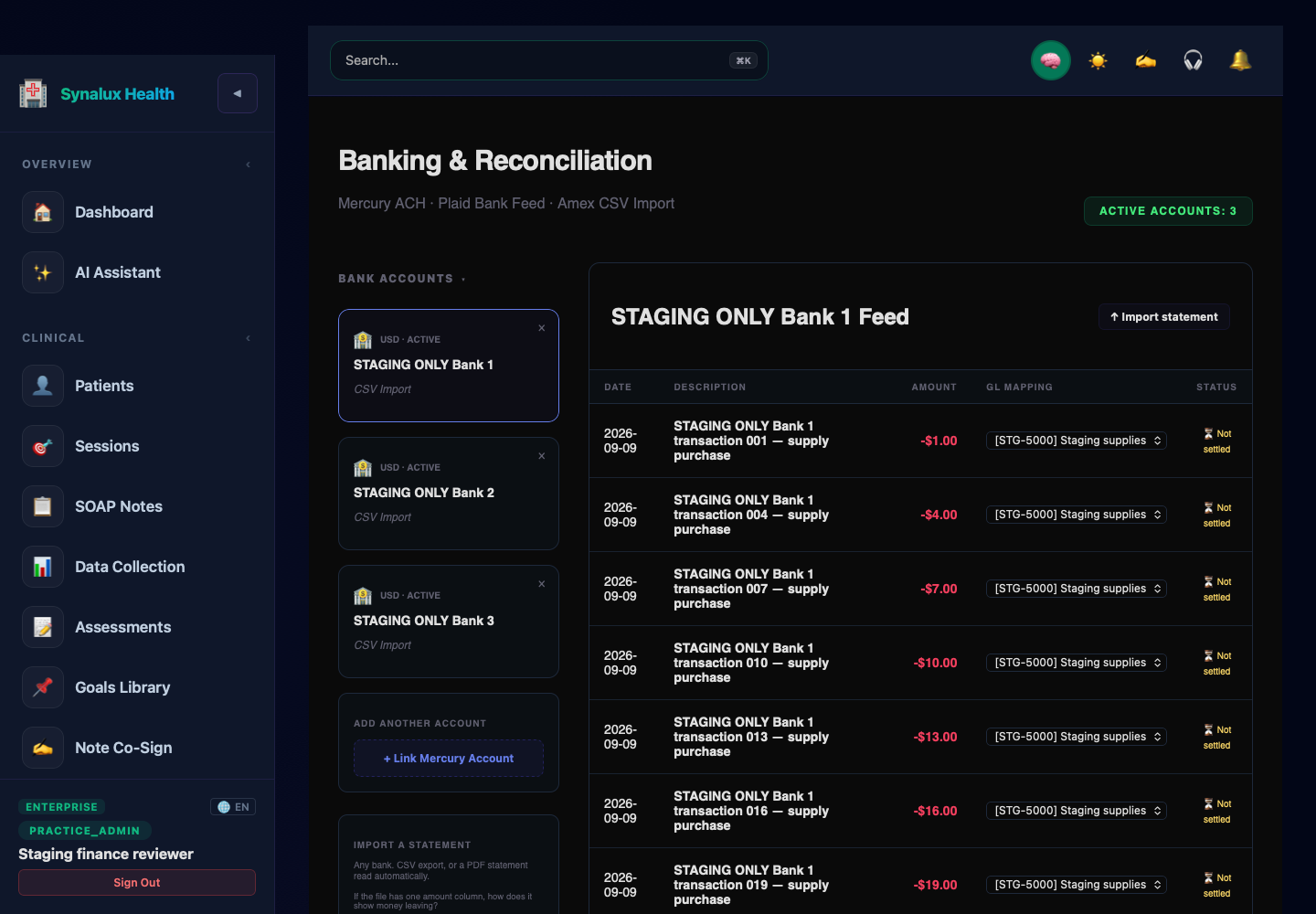
Open Banking screenshot at full size
The screenshot illustrates an imported synthetic feed, not a live provider connection. On narrower screens, scroll the transaction table horizontally to inspect columns outside the first view.
Connected services and current scope
Review finance connection status under Active Interfaces or Connected Services. A provider-dependent operation needs its configured connection, permissions and external confirmation. A connection badge, ledger row and completed provider transfer represent different states.
Totals and screen visibility depend on the selected workspace, loaded records and permissions. Check the relevant records and practice accounting process before using these screens for reporting, payroll, tax or reconciliation decisions. The examples do not establish consolidated reporting, jurisdictional tax treatment or external-provider acceptance.
For related practice operations, see Portal back office, billing and timesheets/payroll.