Assessment documents and PDFs
Open Assessments in the clinical navigation. Use Assessment records to reopen existing work and Assessment templates to inspect available content versions.
Create an assessment document
- Select Start Assessment and choose Assessment method.
- Choose Blank clinical document for your own report, External report or PDF for an externally completed assessment, or Guided assessment for a clinically approved practice content version.
- Use Find patient, select the participant, and set Assessment date. For item administration, select Content version.
- Select Create assessment draft.
- Complete purpose and referral question; participant and assessment context; consent, assent and participation; methods; assessment narrative; limitations; interpretation; recommendations; and author credentials and license information.
- Select Save draft and wait for Draft saved before leaving.
If an Assessment templates card reports incomplete content, use its document-writing action or start the written-document method. A template title or advertised item total does not establish that an item version is ready for administration.
If no clinically approved content version is available, Guided assessment is unavailable. Use Blank clinical document or External report or PDF for the appropriate document workflow; complete the practice content review below before guided use.
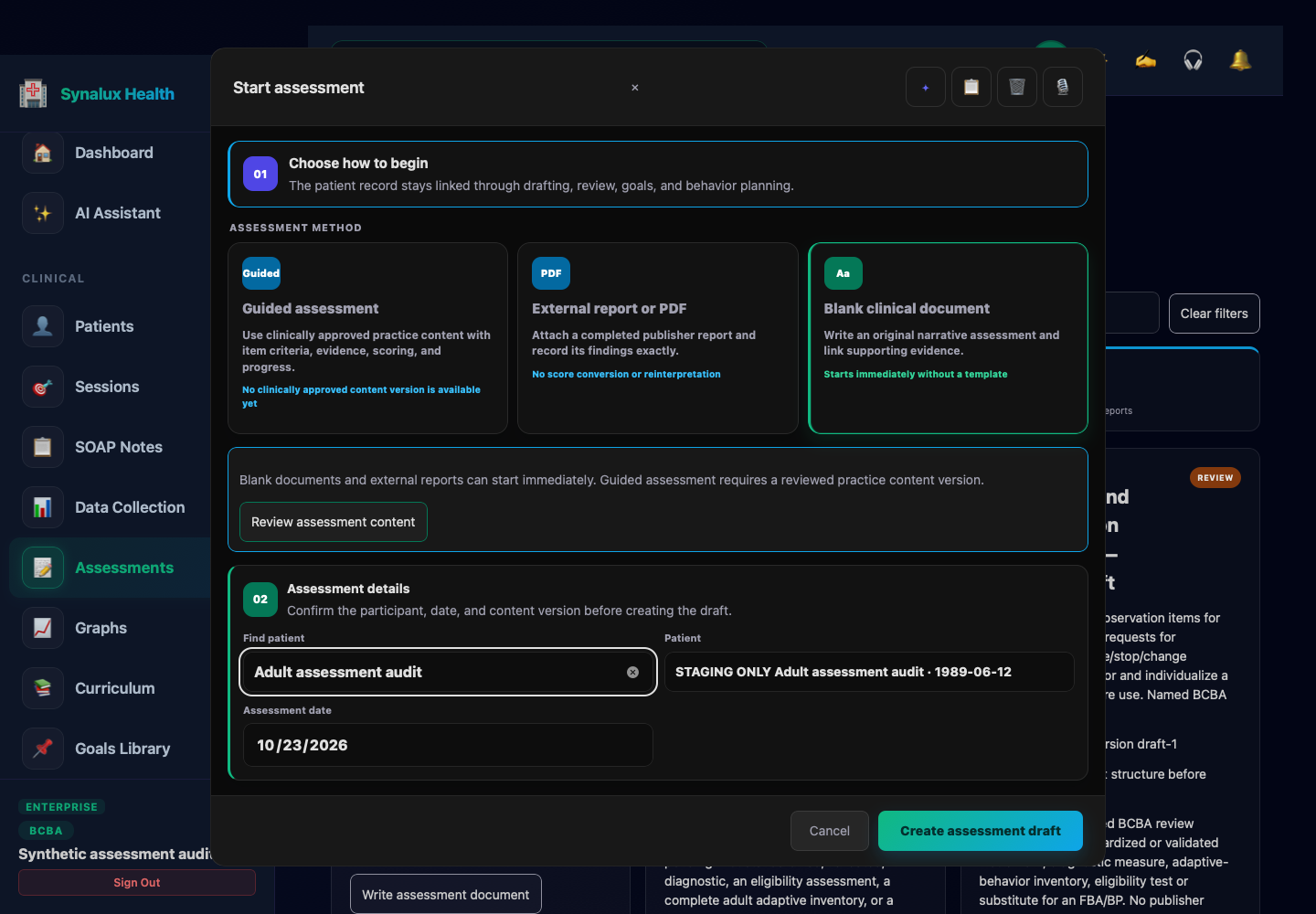
Open desktop screenshot at full size · Open tablet screenshot at full size
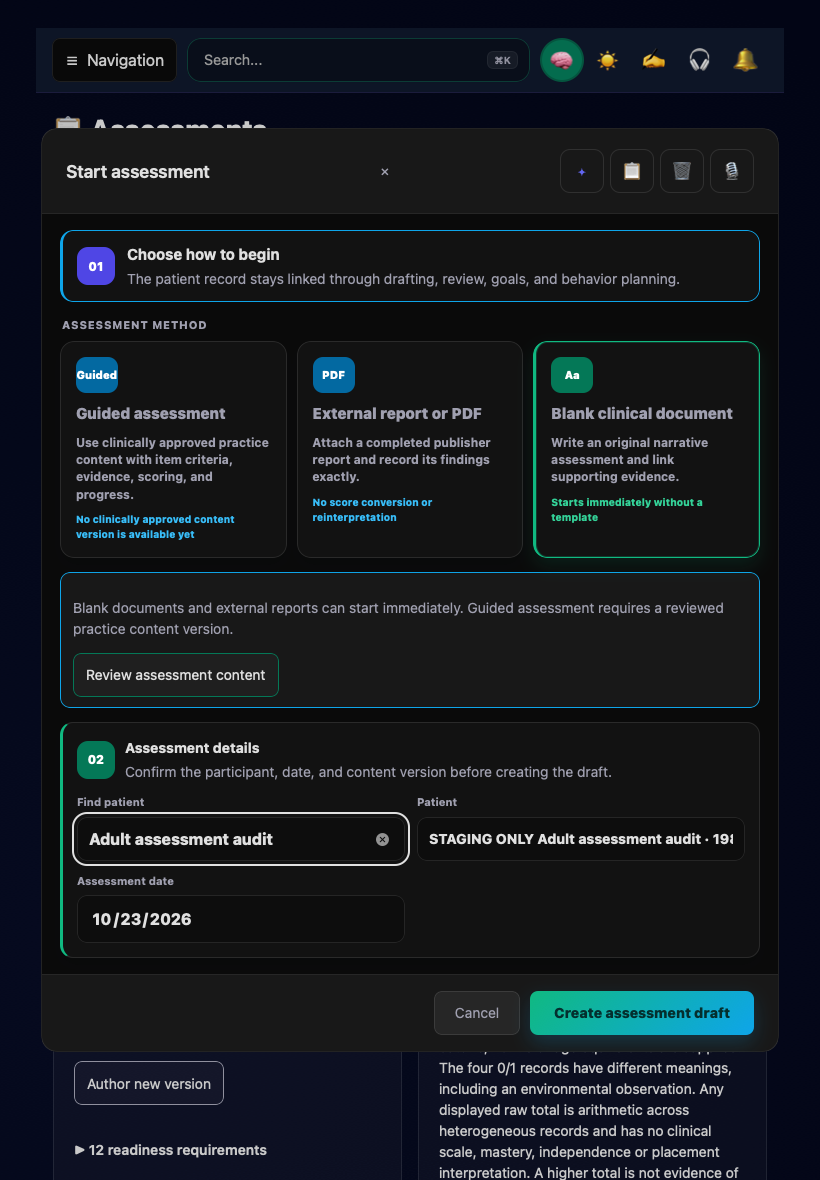
Synthetic records in an isolated local staging environment. Blank clinical document is selected. Guided assessment is unavailable in this workspace because no clinically approved content version is available; this illustration does not approve assessment content. Choose External report or PDF to record a completed external assessment.
When working inside a saved draft, use ← Assessments to return to the list before starting another assessment.
Approve a practice content version for guided assessment
Guided item administration is available only for a complete practice version with an explicit clinical review record.
- In Assessment templates, select Author new version.
- Complete the content identity, ownership, administration instructions, limitations, authored items, measurement definitions, and scoring criteria.
- Enter the clinical reviewer, credentials and jurisdiction, and review date.
- After reviewing the entire version, select Approve this exact version for clinical use, then publish it.
Changing the version after approval—including its identity, instructions, items, measurement definitions, or scoring—clears the approval. Return to Content identity, review the revised content, and approve that exact version again. An assessment amendment retains its original frozen content version; start a separate assessment when a different content version is needed.
The software records the practice's approval statement. It does not verify a credential, establish instrument validity, or replace the clinician's judgment about whether the content is appropriate for a participant.
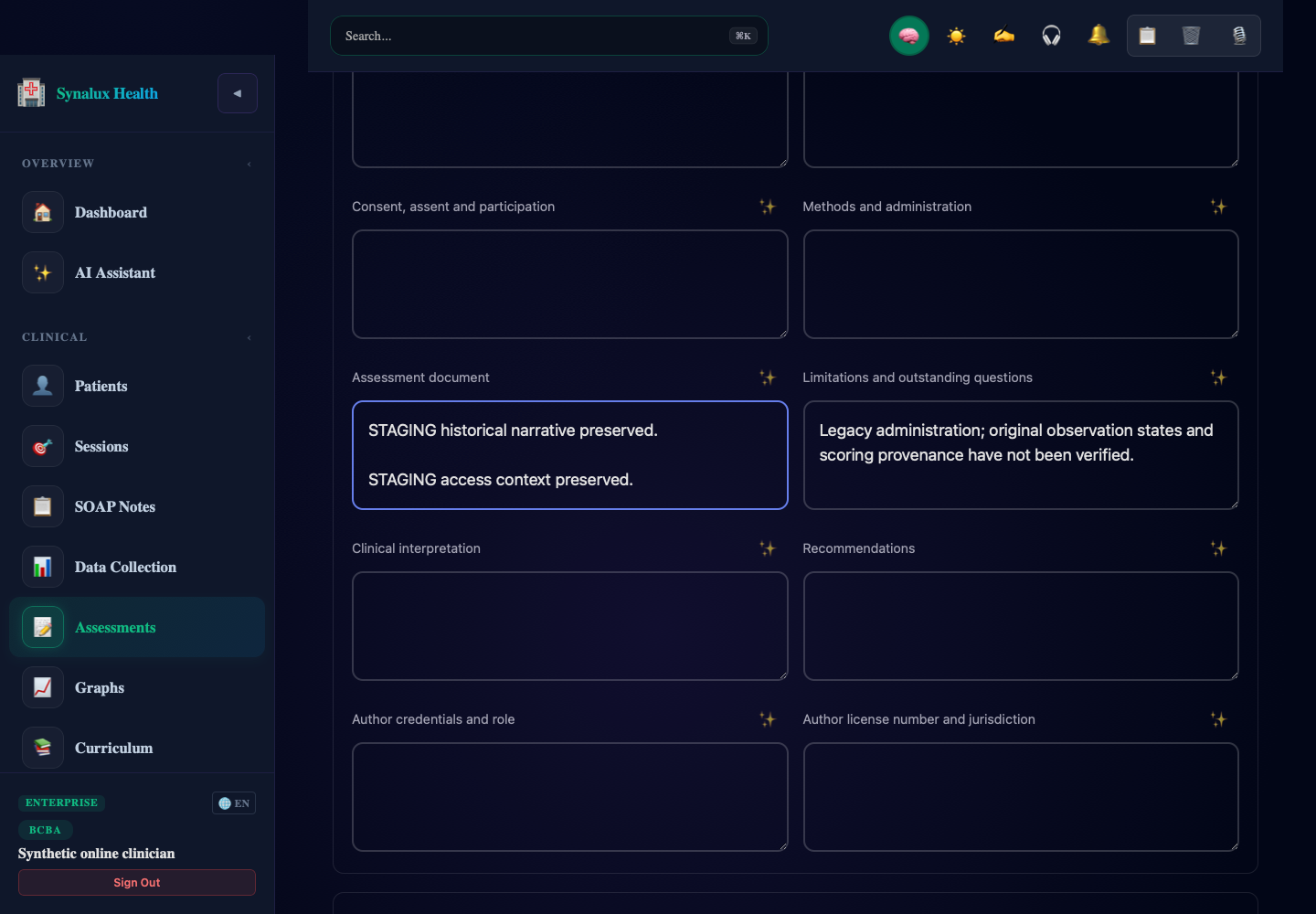
The ✨ icon beside each narrative label is the spelling and grammar correction action. Clinical documents use manual writing and local text suggestions, so cloud correction remains disabled here. The icon's tooltip explains its availability. Copy, clear, and dictation tools appear in the top bar while a text field is active; dialog forms keep those tools inside the dialog header.
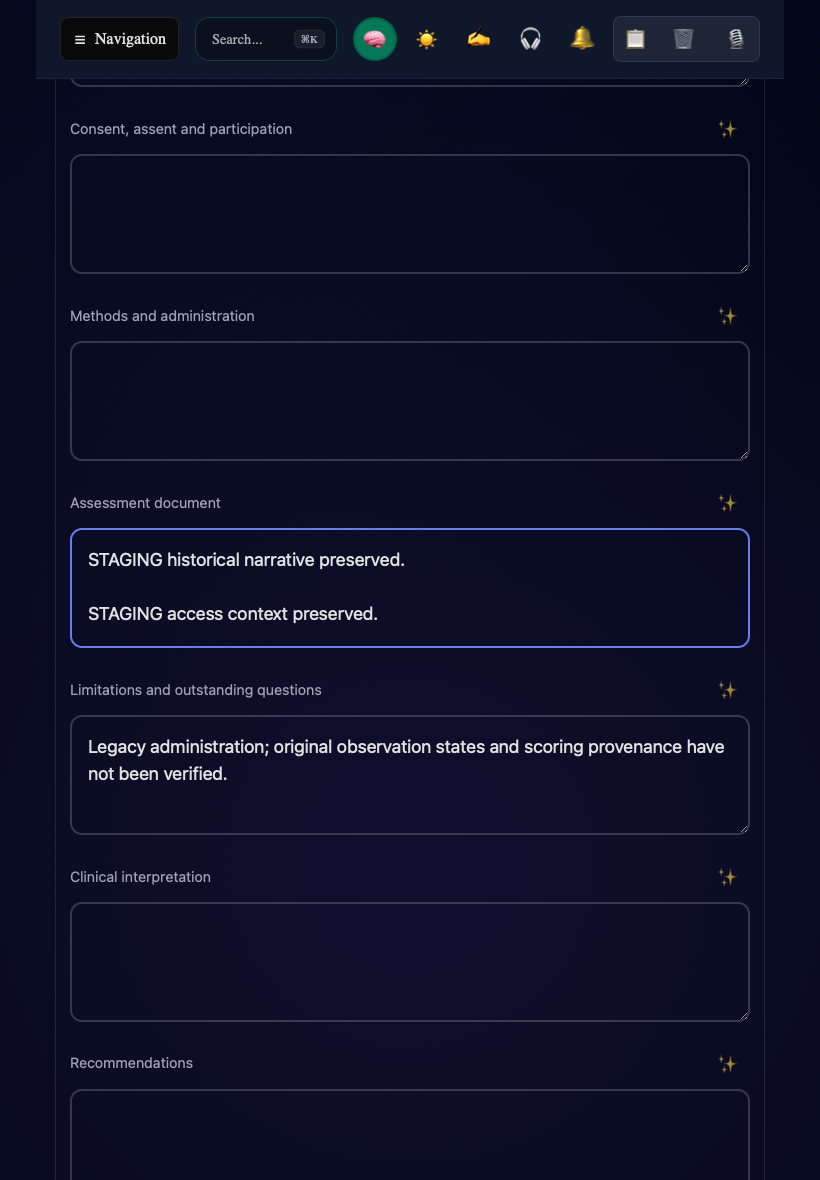
Open the desktop example. Both examples use synthetic staging records.
Upload or link a PDF
- In Evidence and source documents, choose Upload source PDF to select a PDF from the device, or Link patient document for an existing participant document.
- Wait for the upload to finish. Supply the evidence label, date, source type, and observer, author, or source.
- Open the source PDF link to check the document, then Save draft.
- Use Add observation or source for direct observations, interviews, or record-review notes. Link relevant evidence to item observations and framework occasions where those sections are used.
An uploaded PDF supports the report; it does not fill the narrative or establish a clinical conclusion automatically. Resolve an upload failure before treating the attachment as saved.
Record observations without confusing zero with untouched items
Choose an Observation state for each configured item. Not assessed retains an unresolved item. Assessed shows that item's authored score options under Observed score. Not applicable, Unable to assess, and Declined record distinct outcomes, with an exception reason where required.
A numeric zero is an assessed result only when you explicitly select it for an assessed item. Use the displayed instructions, measurement definition, observation context, and evidence links. Record unavailable information honestly instead of filling it with a numeric zero. Historical numeric records retain their ambiguity until reviewed through an amendment.
Barrier and readiness observations records original descriptive observations. Add an occasion with date, observer and supporting evidence, and document the observable criterion for each rating. These ratings are not standardized scores.
Complete, review, and download
- Open Review readiness, read outstanding issues and correct the referenced content.
- Confirm the review attestations after checking evidence, limitations, consent, and interpretation.
- Complete administration saves that status, but the report still needs review. Review and lock report saves a reviewed, locked version.
- Use Download report PDF. Check participant identity, date, assessor, credentials, narrative, results, and evidence before sharing. A draft download is not a reviewed report.
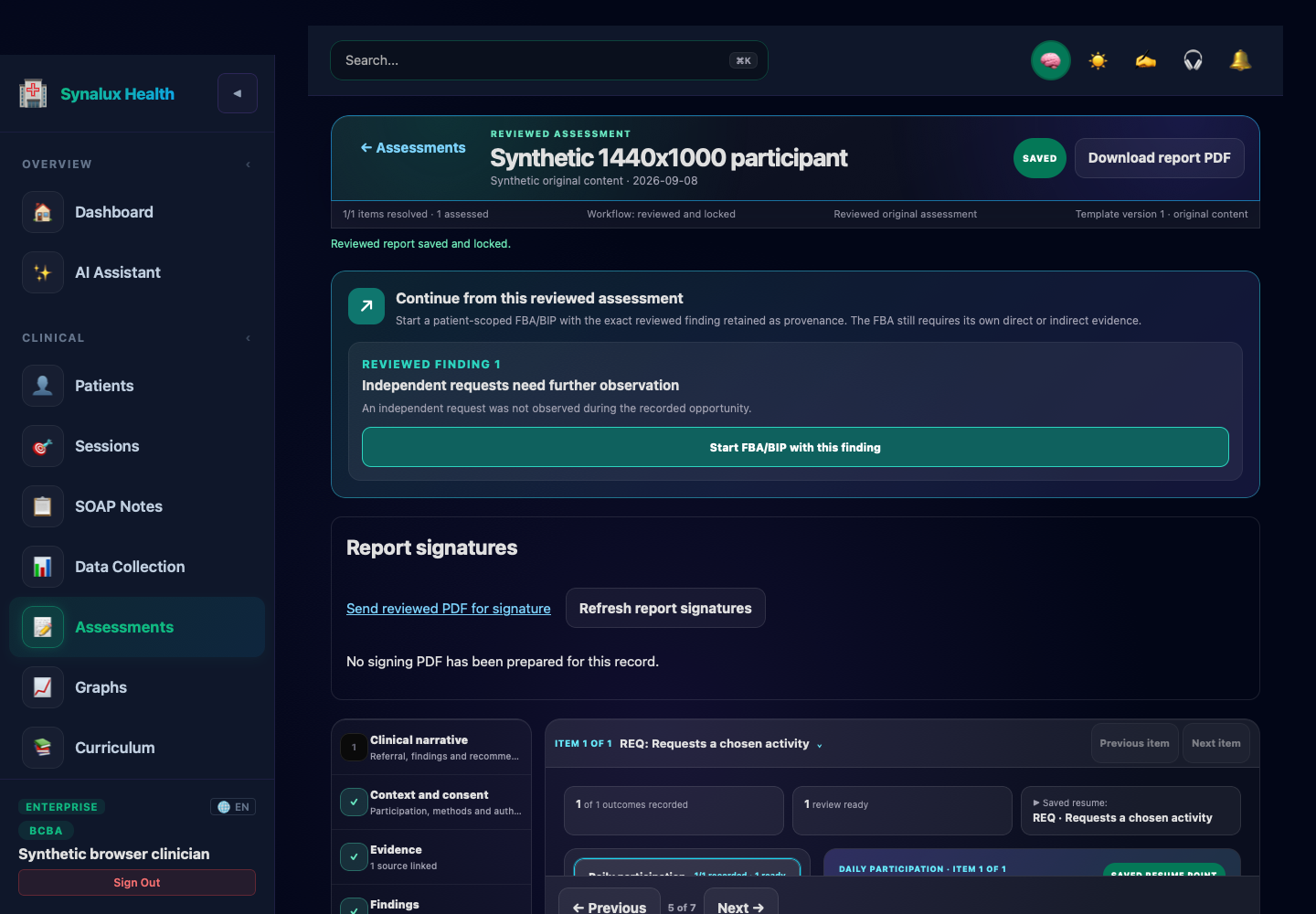
Synthetic local staging record captured on October 23, 2026. No signature request has been prepared in this example.
Correct a reviewed report
Under Amend this reviewed record, enter an Amendment reason and select Create amendment draft. Edit and review the new draft. The earlier reviewed record stays intact. A historical record can be converted into a linked assessment document using its amendment action.
Continue to Adult FBA and BIP, External results, or Report signatures.