Report signatures and BoldSign templates
Start from the reviewed clinical record so the request stays associated with the correct participant and report revision. A practice administrator manages the signing connection and clinical template library. Access also depends on the workspace plan and permissions.
Send a reviewed report
- Open a reviewed assessment or released FBA/BIP. In Report signatures, select Send reviewed PDF for signature.
- In E-Signature, choose a compatible clinical template. Check the report, participant, revision and template information.
- Resolve required signer roles, recipient details, and report-field mappings. Confirm the authorized recipients; a stored guardian contact alone does not establish signing authority.
- Select Prepare reviewed PDF, then open the PDF link. Review the report content and mapped template fields, and confirm the PDF review before sending.
- Send the request and confirm its displayed delivery state. Return to Report signatures to track the same request.
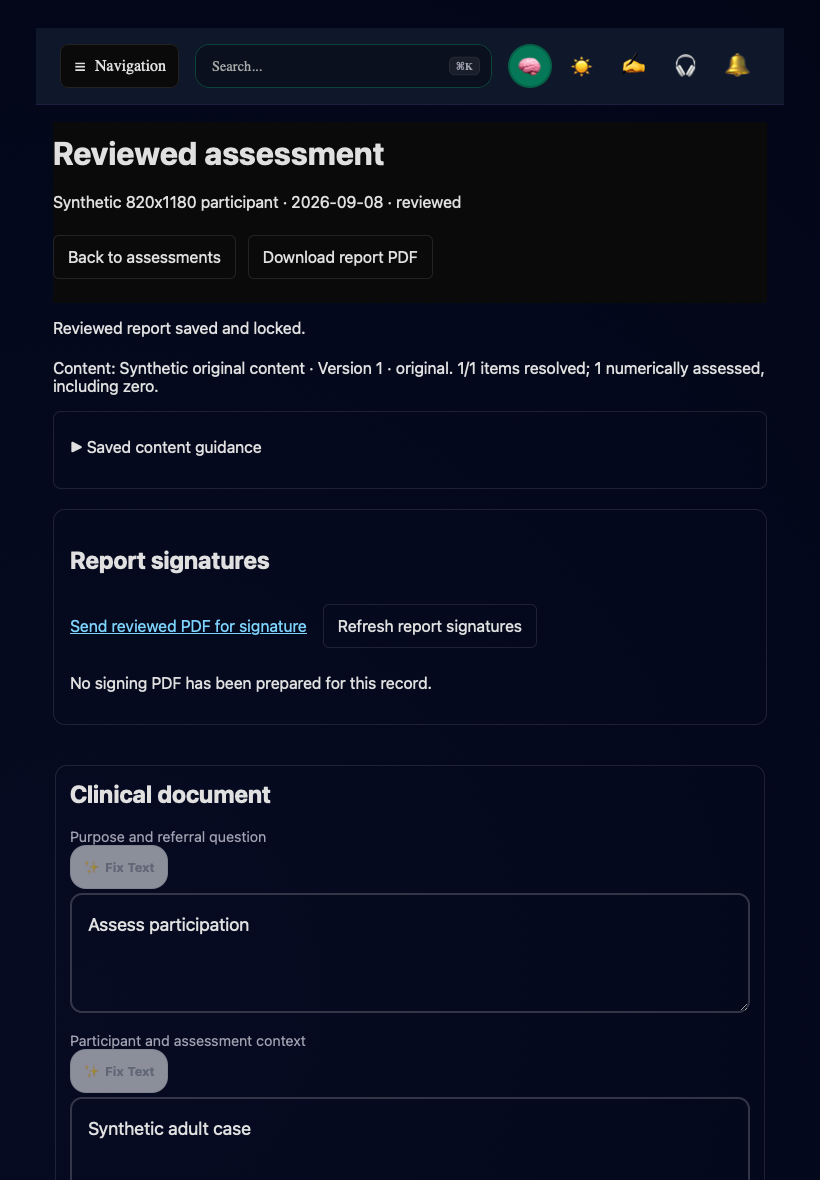
Synthetic staging record showing the entry point. This screenshot does not show a sent or completed request.
Link a practice template
- An administrator opens Clinical signing templates. Check Signing connection and its Sandbox or Live environment. Use Configure BoldSign in E-Signature if setup is needed.
- Under Find templates in BoldSign, enter a name or ID and select Search templates.
- Choose Link template for a completed provider template. Enter Practice template name and Clinical purpose.
- Select Verify and save mapping. Inspect readiness and signer roles in Practice template library.
- Configure the report-field mappings offered for the template and preview a reviewed record before sending.
The template must support the report attachment and required signer roles. When the connection or environment changes, use the library's revalidation or environment-copy action as appropriate. A saved mapping does not prove that a real request has been delivered or signed.
Retrieve results and resolve uncertain delivery
Use Refresh report signatures on the clinical record. Open retained signing PDF opens the prepared report revision. A Prepared · not sent entry has not yet produced a request. Completed requests provide the retained signed document and audit record when retrieval succeeds.
If delivery is unconfirmed, check the existing request and provider using the recovery action before sending another request. If the request needs to be linked to the provider record, use its recovery control. Recheck the participant, report revision, and provider identity before confirming the link.
This flow appends the reviewed report to compatible template signature pages; it does not place signatures directly on the original report pages. Completed-document downloads above 25 MB are rejected. Resolve retrieval errors on the existing request instead of assuming that provider status alone means the files are retained in the chart.
Return to Assessment documents, Adult FBA and BIP, or the BCBA workflow guide.