Goals, curriculum and target data
Use a library goal as a starting point for individualized work. The goal describes the intended skill and teaching procedure; its targets define the observable responses that staff record. A starter or copied goal still needs the clinician's patient-specific baseline, measurement definition and review.
The illustrations below use synthetic records in an isolated local staging environment, captured on October 23, 2026. They follow one software demonstration from a published source to a saved session and graph. Each tablet example uses a separate synthetic participant. These are viewport examples: scroll through the full editor and every target before saving.
1. Choose a library goal
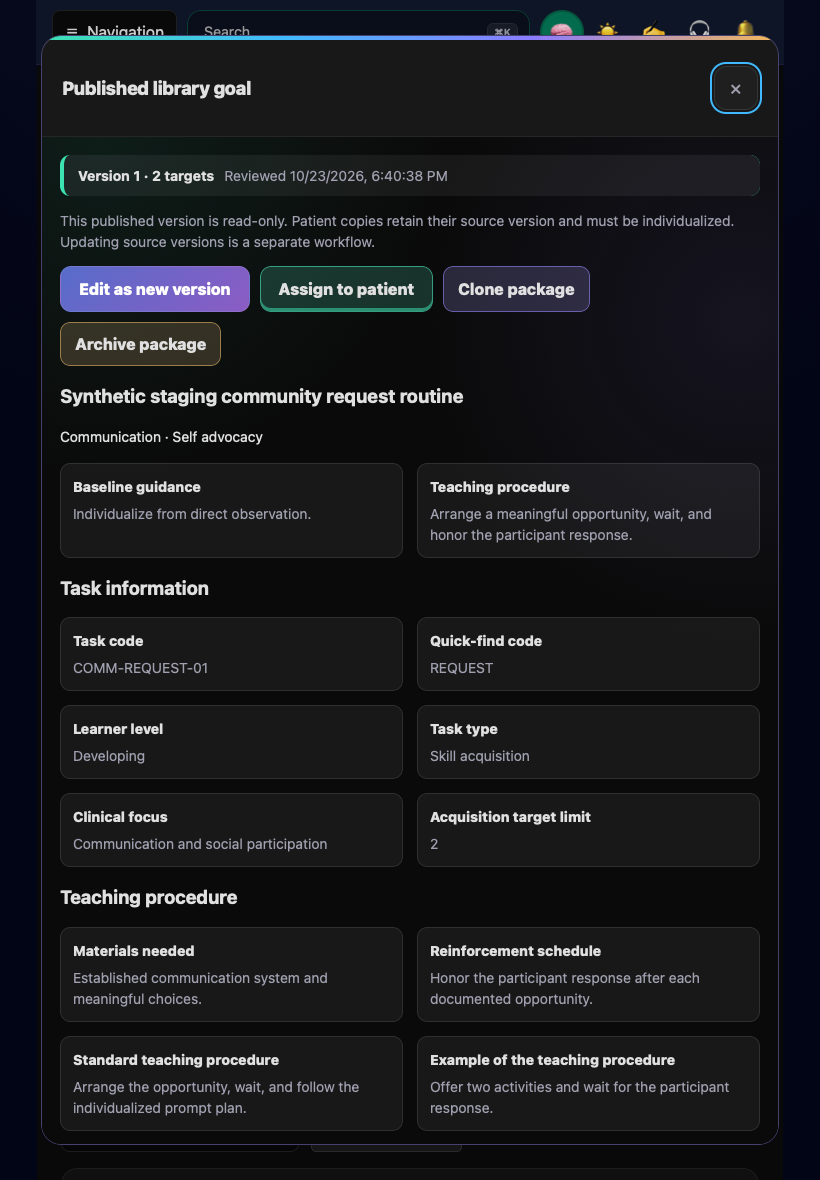
Open Goals Library. Under Reviewed practice library, search goal names and use the available domain or skill-category filters. The starter-guidance section above it has its own search. Preview a published practice goal before using it. Review its Task information, Teaching procedure, targets and measurement definitions together.
Creating a reusable library version and assigning it to a patient are different operations. Editing a library goal as a new version preserves the published source history; it does not mean existing patient goals were updated.
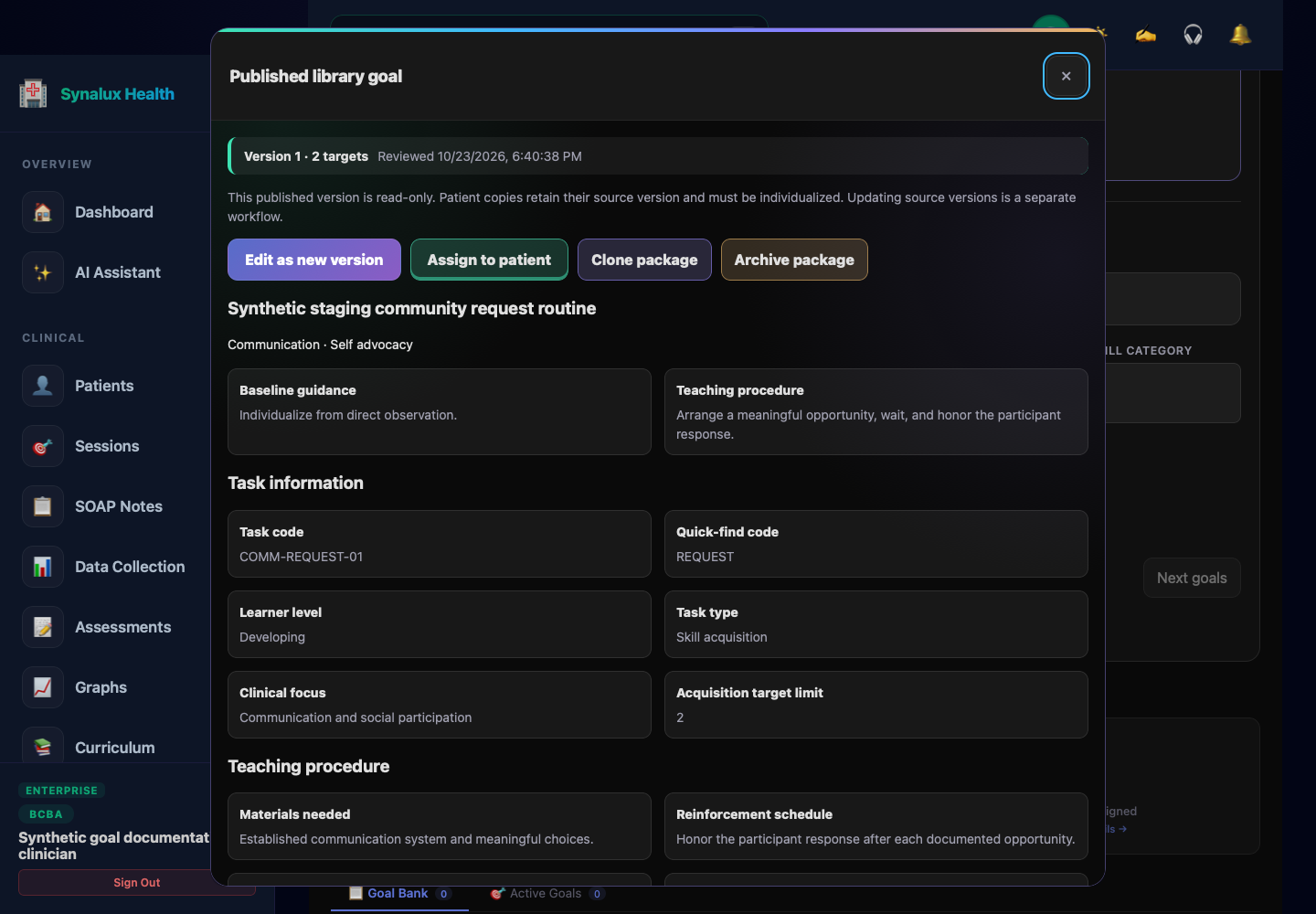
Open desktop preview · Open tablet preview. Teaching details and targets continue below this viewport.
2. Individualize it for the patient
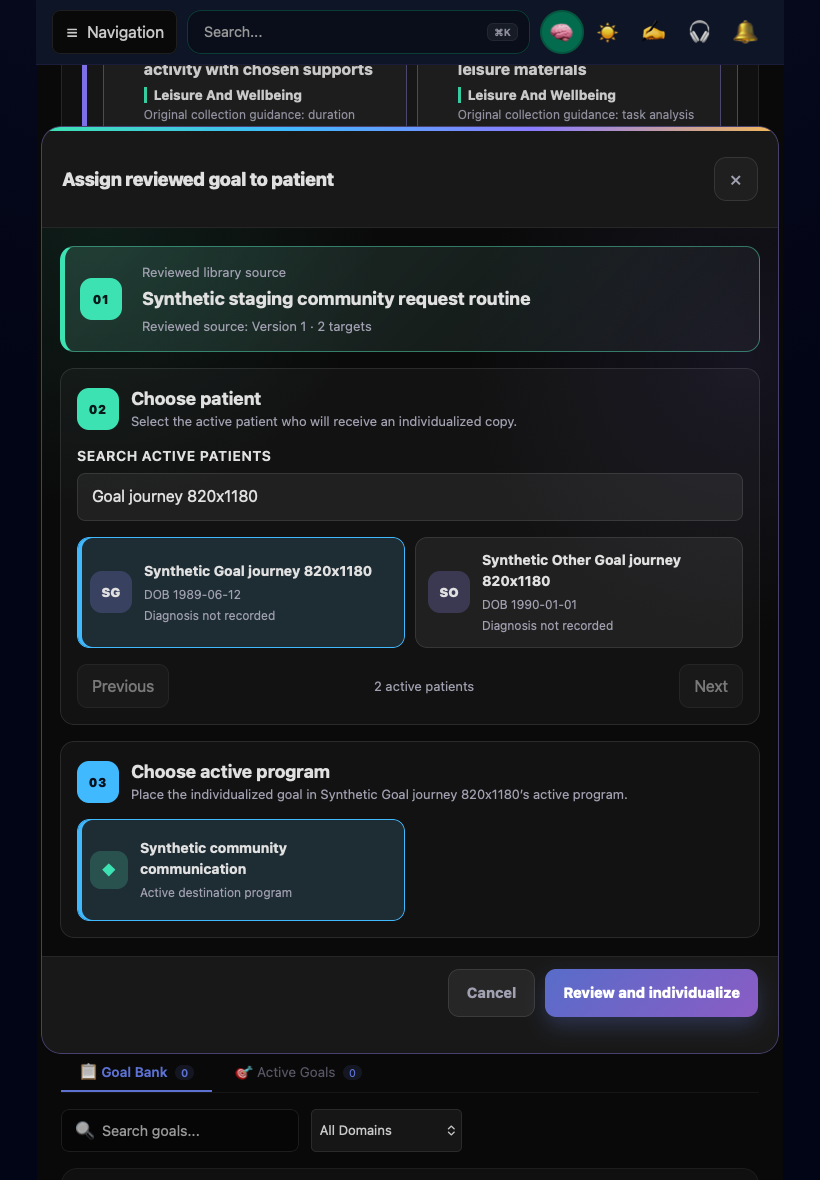
Select Assign to patient, choose the intended patient and destination program, then select Review and individualize. Check the displayed patient identity and source version before continuing. Review the goal wording, baseline, teaching instructions and each target for that patient.
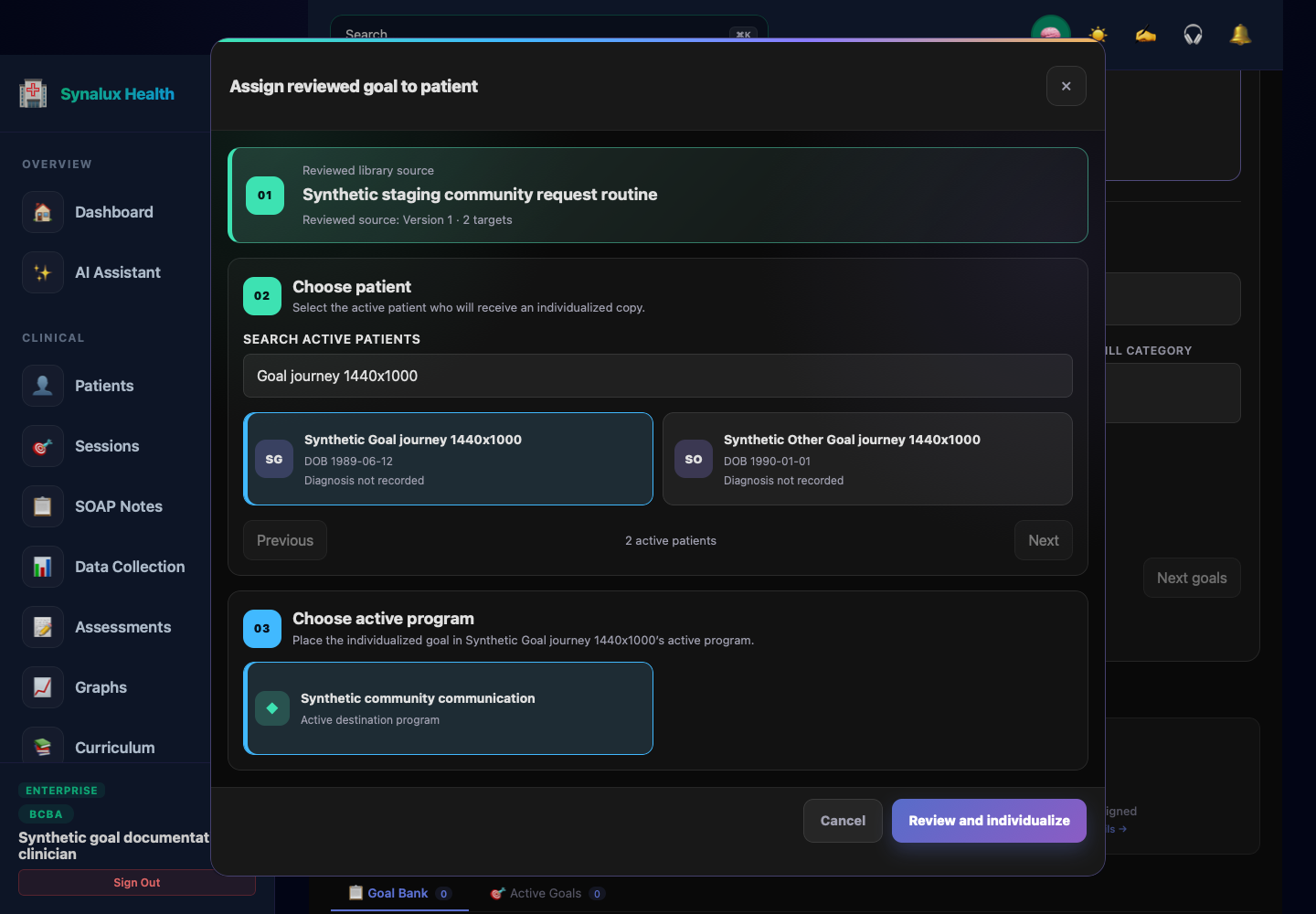
Open desktop destination picker · Open tablet destination picker. Search narrows the patient results; Previous and Next move between result pages. Confirm the selected patient and active program before continuing.
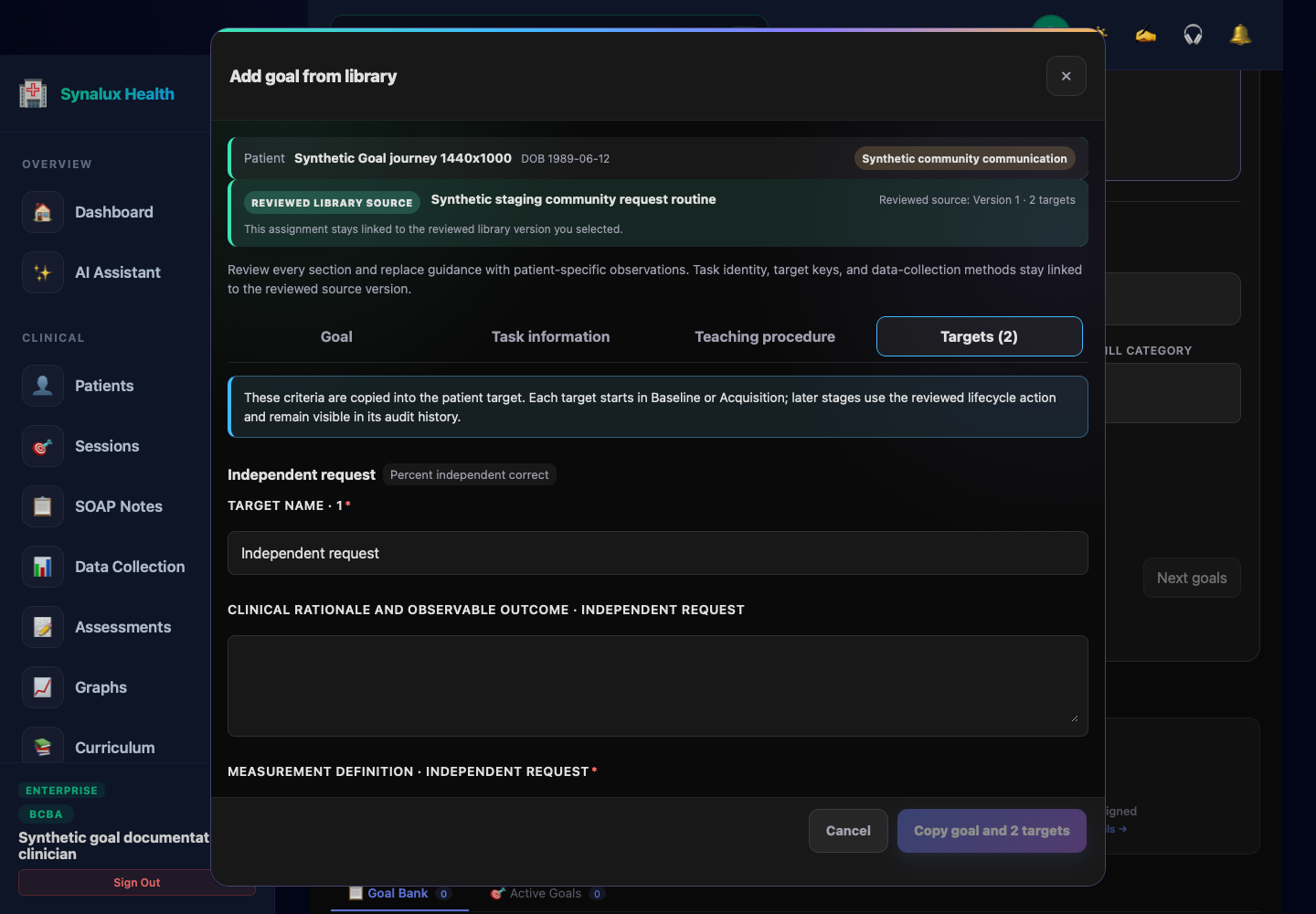
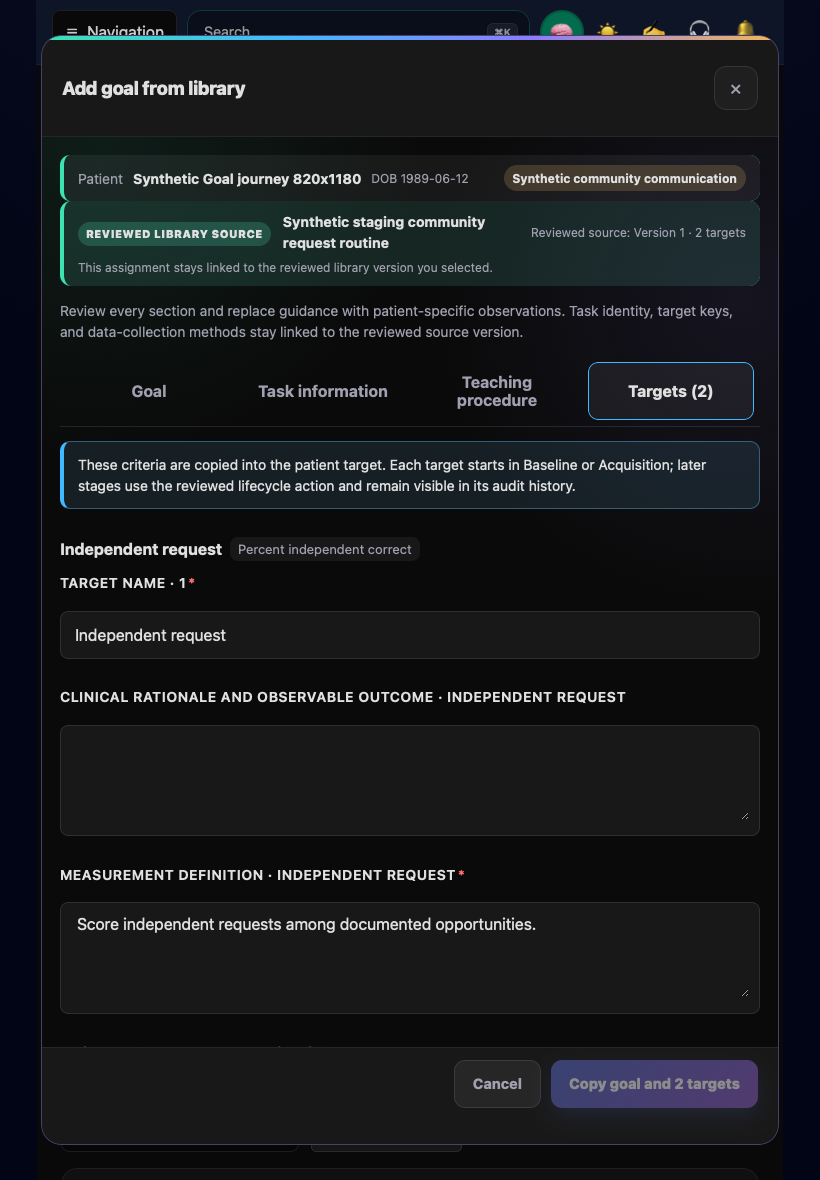
Open desktop target editor · Open tablet target editor. The editor is still in review here; the copy action remains disabled until the required review confirmation is made.
Save the individualized copy, then select Open created patient goal to reach the destination chart under Plans & Goals → Programs & Goals. Confirm that the goal and its expected targets appear in the correct program. If the save status is uncertain, follow the offered recovery action before submitting another copy.
3. Review targets and teaching details
For each target, check the response definition, data-collection method and lifecycle stage. Configure mastery, generalization, maintenance and review information where the selected method supports them. Measurement types have different recording requirements: a count, a timed observation and a percentage of trials are not interchangeable.
If a goal limits the number of targets in Acquisition, resolve a conflict between that limit and the selected targets before publishing or copying. Do not change the limit merely to silence validation; the clinician must choose the intended acquisition plan.
Curriculum also provides a view of goal packages and patient targets. Confirm the selected view and participant before changing an item. A legacy target and a published goal package are different sources, so use the editor offered for that record.
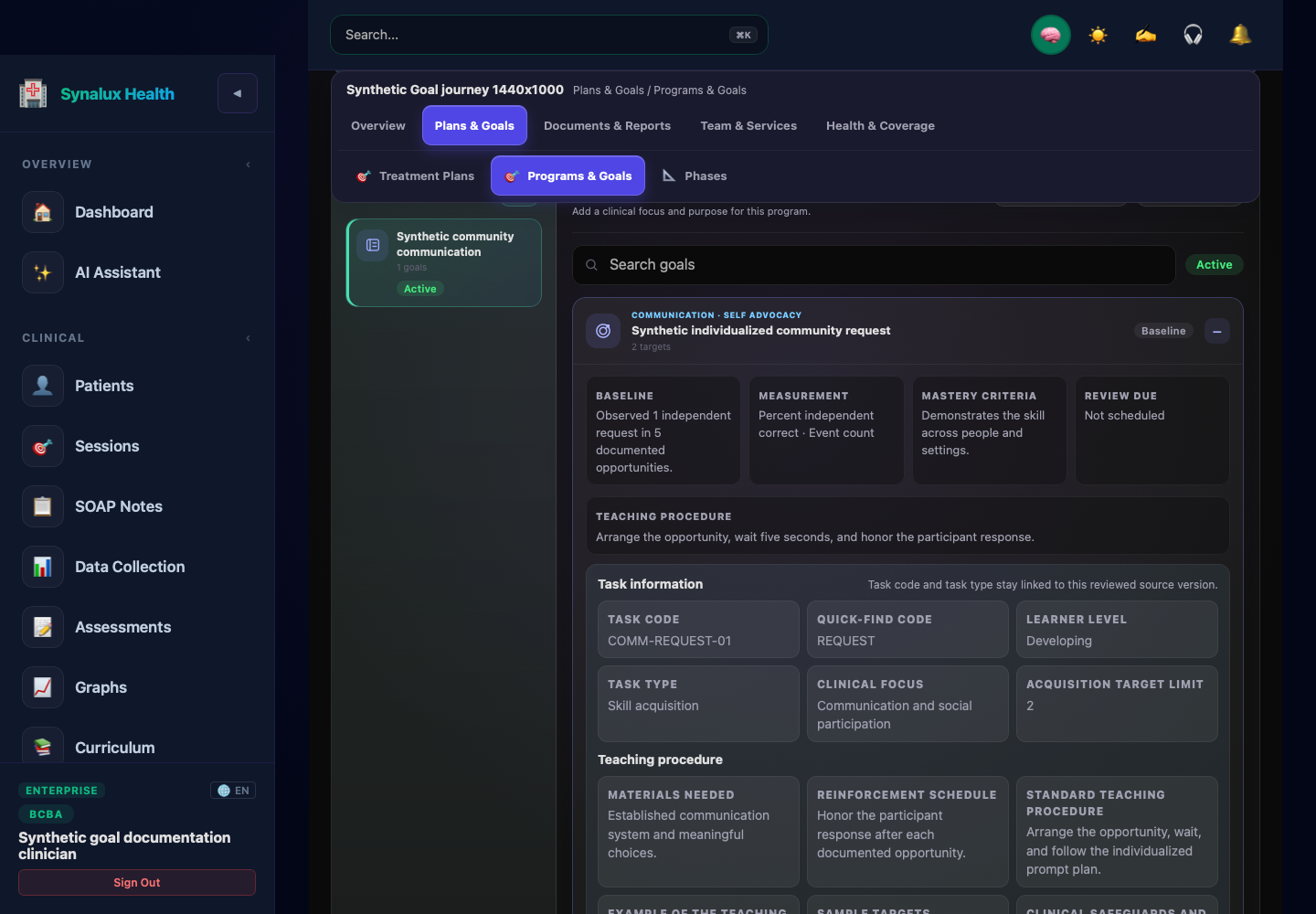
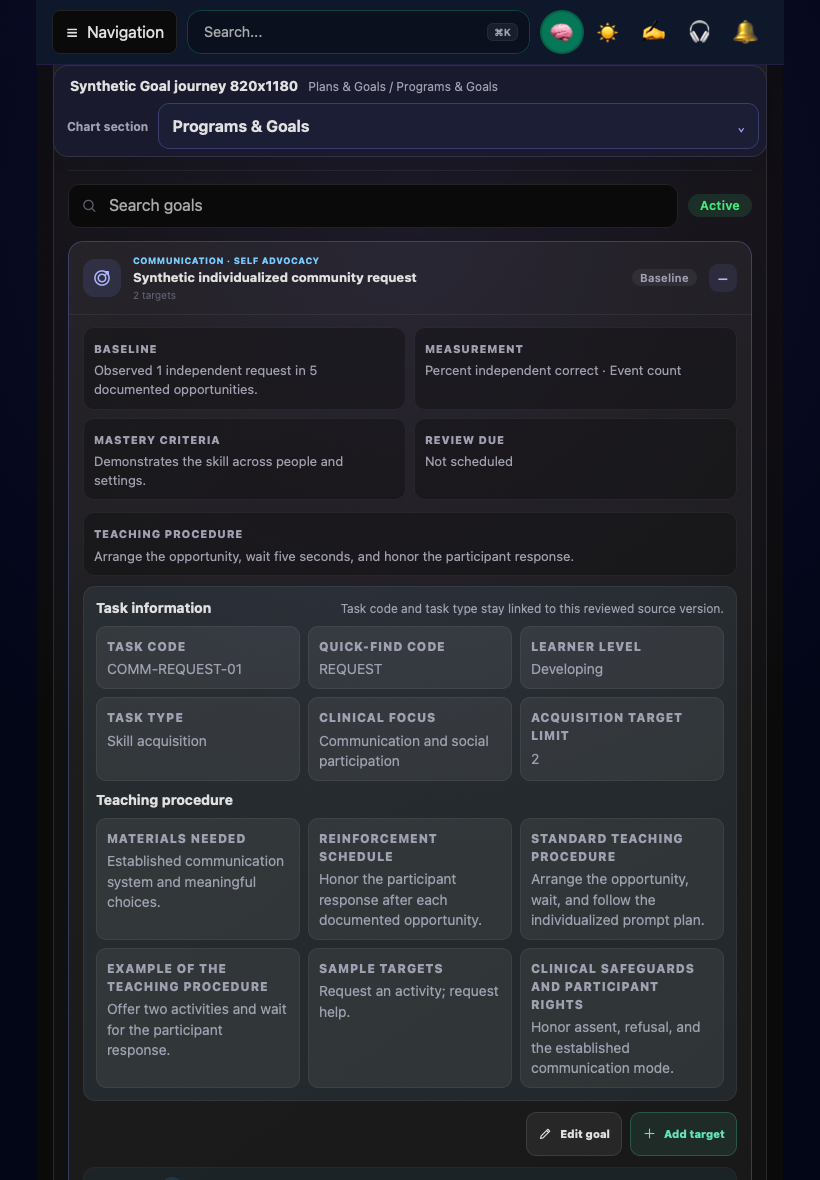
Open desktop patient goal · Open tablet patient goal. The target rows continue below the teaching details; the header reports two targets.
4. Record observations
From the patient chart, open Team & Services → Sessions → Start data collection. On the tablet layout, select Sessions from Chart section. Confirm the patient, service and planned duration in Start an unscheduled session before selecting Open session. Resolve any displayed coverage or service-readiness issue through the practice's patient and authorization records before continuing. Record the actual funding arrangement; do not select self-pay merely to bypass a readiness warning.
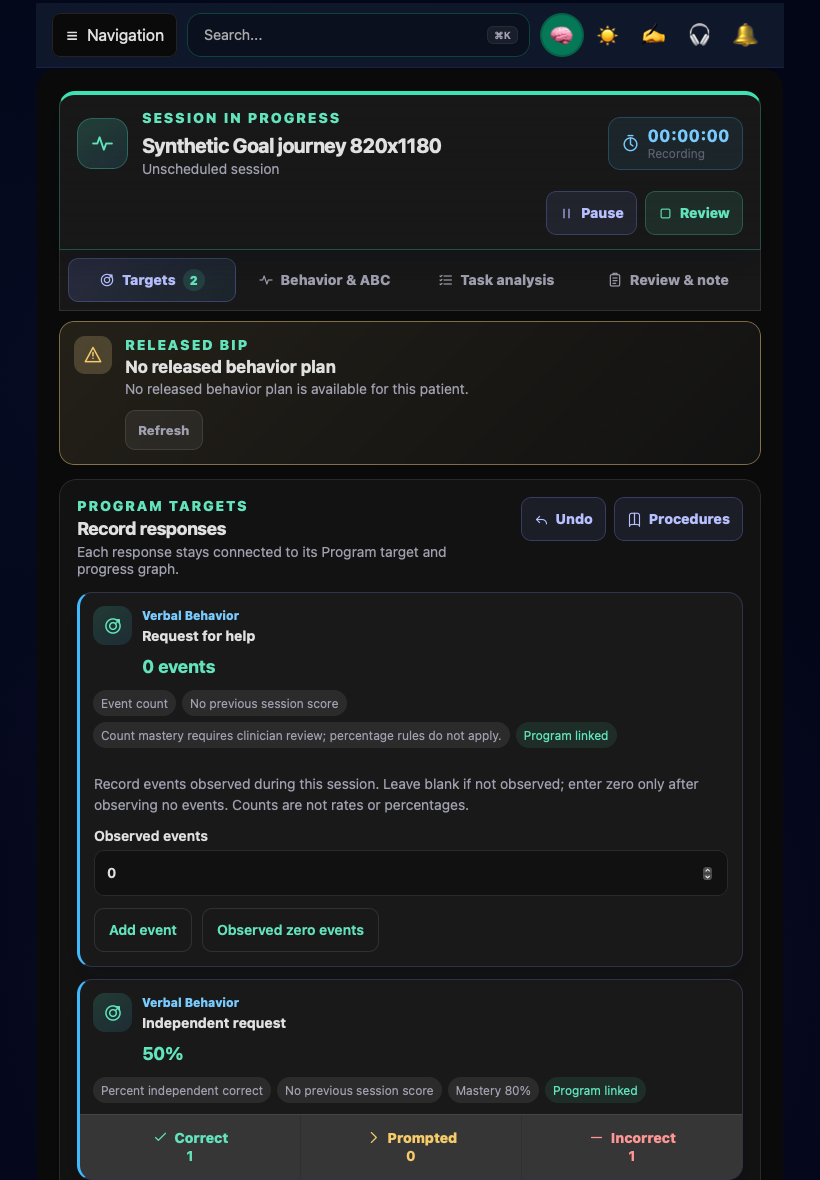
Confirm each target and its measurement type before recording. Recording options depend on the collection method. If the screen reports that a method is unavailable, keep the target's definition intact and review it with the clinician; do not substitute another measurement to bypass the limitation. For supported methods, use the defined opportunities, timing or prompt scheme and record the observed response rather than inferring a score from an empty field. An explicitly observed zero and an unrecorded target are different states.
Select Review session, then Complete and save session. Reopen the saved record to check the target, observation time, values and status. An unconfirmed or device-retained record is not the same as a saved server record. Resolve the displayed handoff or conflict state before assuming the team can use it. The standalone Data Collection entry is another surface; confirm its selected patient, target and available recorder before using it.
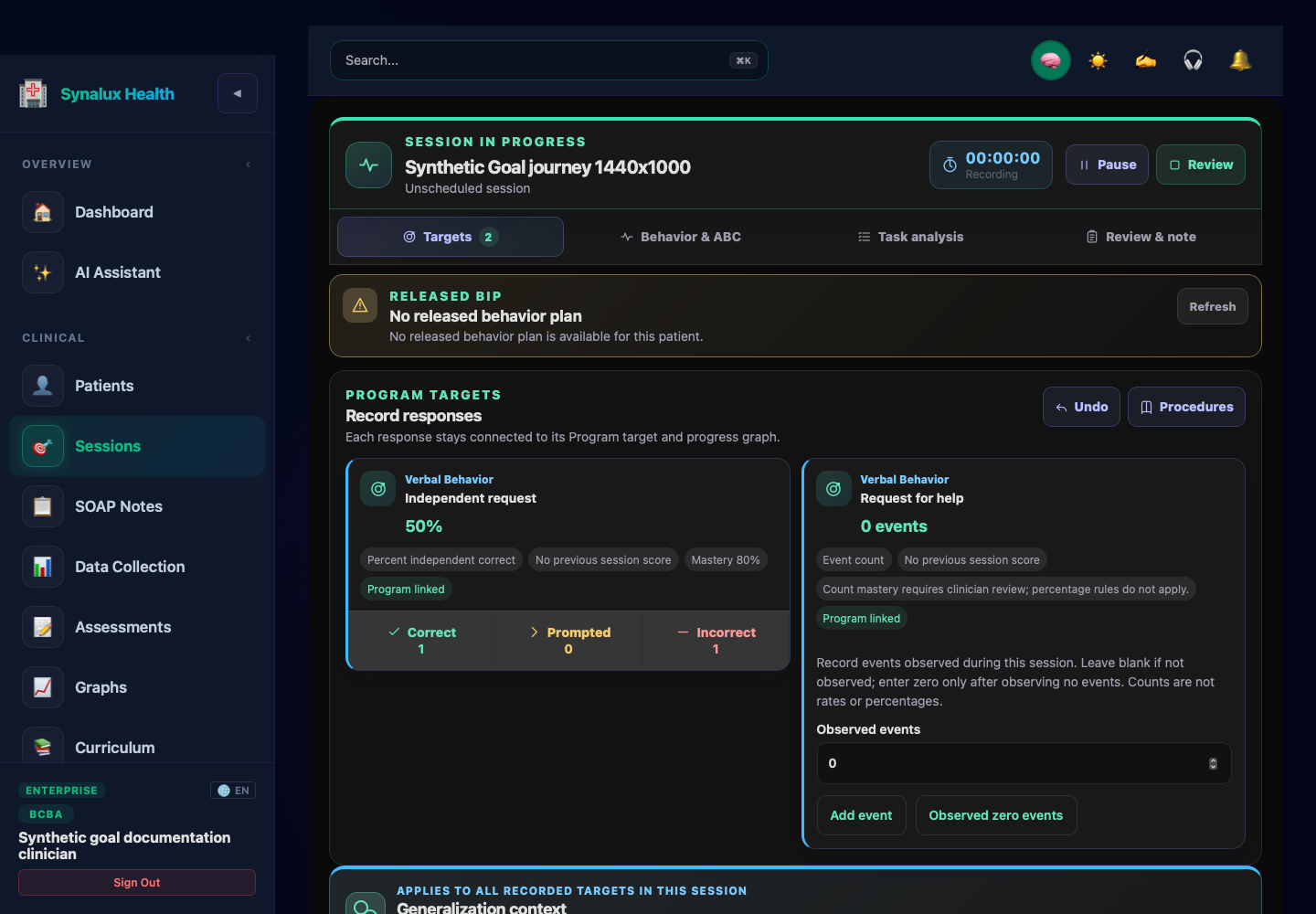
Open desktop recorder · Open tablet recorder. The compact Undo control has the full hint Undo standard response and removes the last standard response. Undoing an observed zero count returns that target to Not observed. This example explicitly models self-pay and shows no released BIP; it illustrates target recording, not behavior-plan implementation. The session clock is still at zero in this brief software demonstration, so it is not evidence of a clinical observation duration.
5. Review the graph
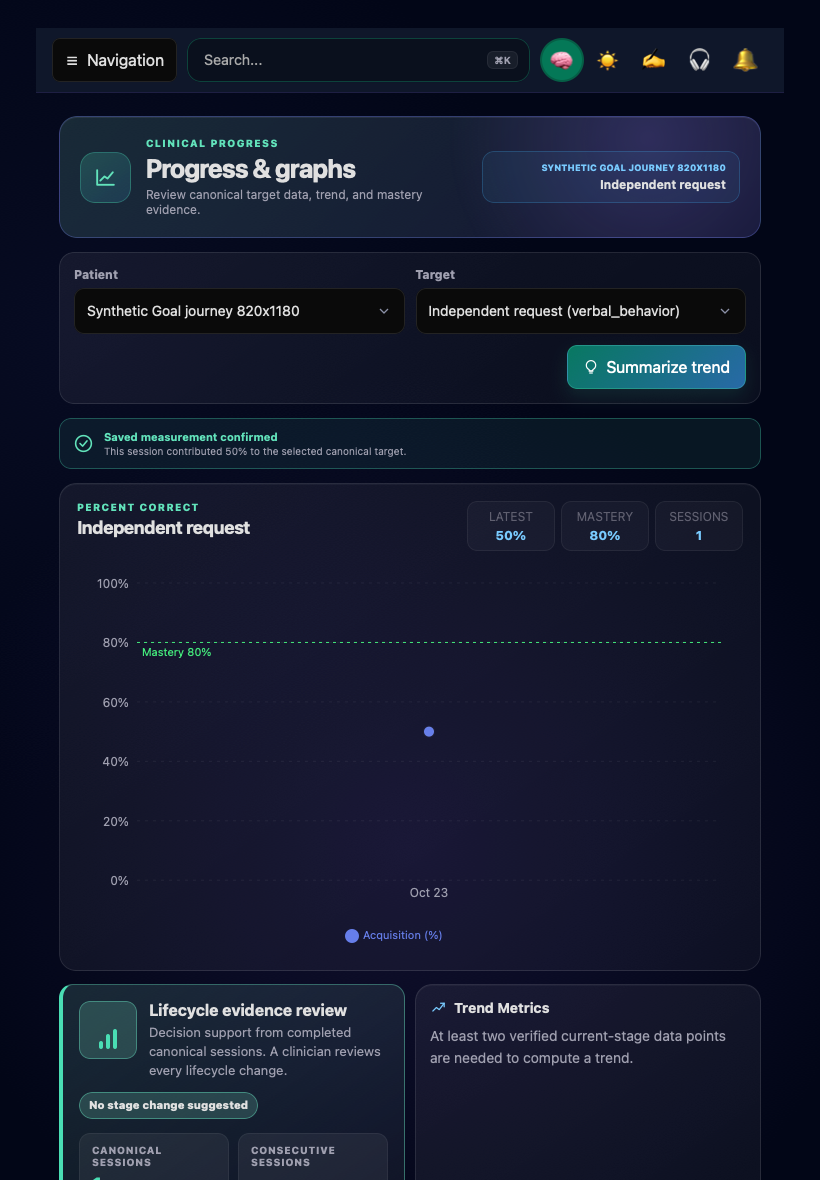
Use Open saved graph from the completed session (the button reads Open graphs when the session recorded more than one target), or open Graphs and select the same patient and target. Check the date range, measurement unit and included observations. A graph with no matching observations needs a filter or source-data check; it is not evidence of zero performance.
Use the saved observations and their context when reviewing the result. A plotted trend or lifecycle status does not, by itself, establish clinical progress or justify a treatment change.
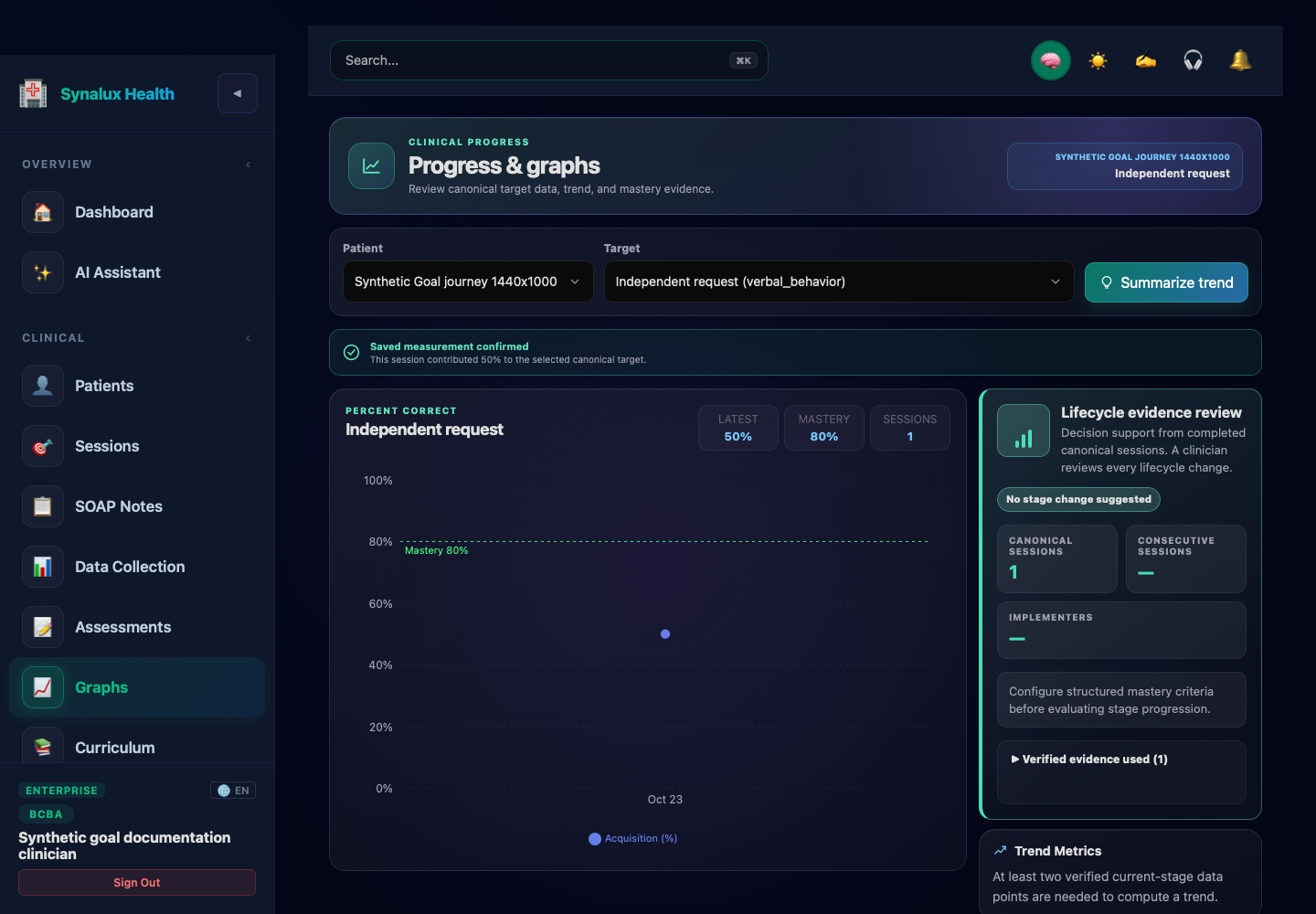
Open desktop saved graph · Open tablet saved graph. This single saved session supplies one point. The 80% reference is the example target's configured criterion, not an achieved result or a clinical recommendation. When a session has multiple targets, select the intended target after opening the graph and select it again after reloading.
Related work
Available actions depend on your workspace permissions, the selected record and the measurement method. Keep the patient identity and source version visible when handing work to another clinician.