Portal back office
This guide covers the healthcare Portal. For restaurant and retail operations, use the separate POS back-office guide.
Choose the correct workspace before opening records. Your role and the practice's connected services determine the actions available. A saved record, an issued payment and a completed provider transfer are separate states.
Choose the task
| Task | Portal entry | Detailed guide |
|---|---|---|
| Review charges, invoices and payments | Billing | Billing and payments |
| Book or update a visit | Schedule | Scheduling |
| Review staff time and pay periods | Timesheets, then Payroll | Timesheets and payroll |
| Review staff and credentials | Staff | HR and staff |
| Review entries and account balances | Accounting | Accounting and banking |
| Review imported bank transactions | Banking | Accounting and banking |
| Maintain stock and assets | Inventory | Inventory |
| Configure practice forms | Admin panel → Form Builder | Form administration |
Billing and scheduling
In Billing, confirm the patient and invoice before recording a payment. Use the available invoice, eligibility or ERA controls for the task at hand. Reopen the record to check its saved amount and status; a local record alone does not establish that an external payment settled.
In Schedule, confirm the site, provider, patient and time before creating or editing an appointment. After saving, check the visit in the selected date range. In the day view, completing a scheduled visit also creates a billing entry; review actual visit times before using that action. Cancellation changes the appointment state; it does not replace reviewing related billing records.
Staff, timesheets and payroll
Open Staff to review the directory, credentials, training and supervision. Use the relevant tab before adding a credential or supervision entry; check the staff identity and saved dates afterward.
In Timesheets, use the pending, approved or rejected filters to find an entry. Review the person, service period and recorded hours before approval. In Payroll, choose the pay period and use Preview to review the calculated result before Save & Issue. Check the saved period and its status afterward. Issuing payroll in the Portal does not by itself confirm a bank or payroll-provider transfer.
Accounting and banking
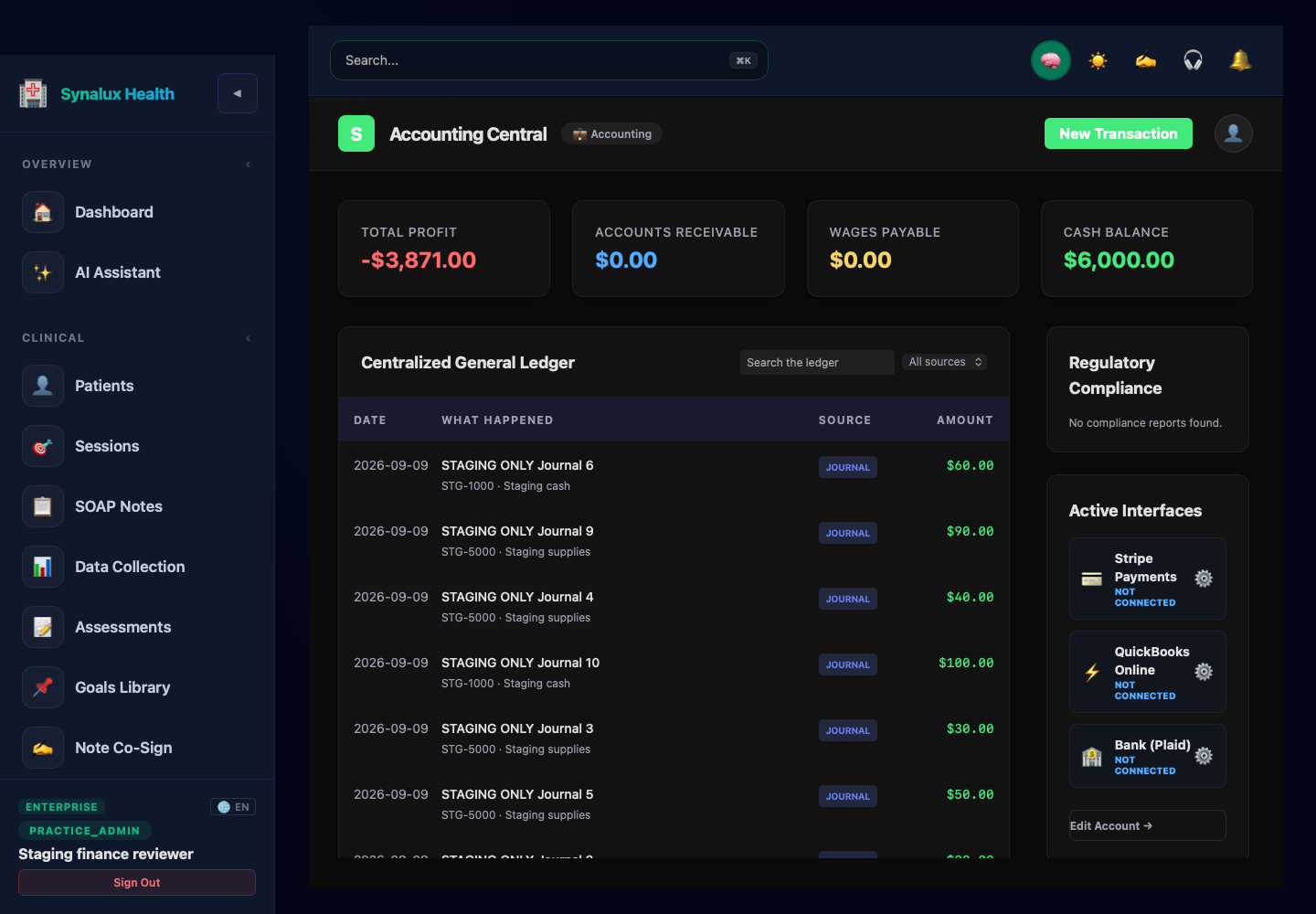
Open Accounting to review the totals and Centralized General Ledger. Search the ledger or filter by source. Use New Transaction for an authorized manual entry, then find it in the ledger by search or source and confirm its details.
Open Banking, select an account, and review its transaction feed. Confirm the account and statement before importing. Review each transaction's account mapping and status; an imported transaction is not proof of reconciliation or bank settlement. A configured provider connection is required for provider-dependent actions.
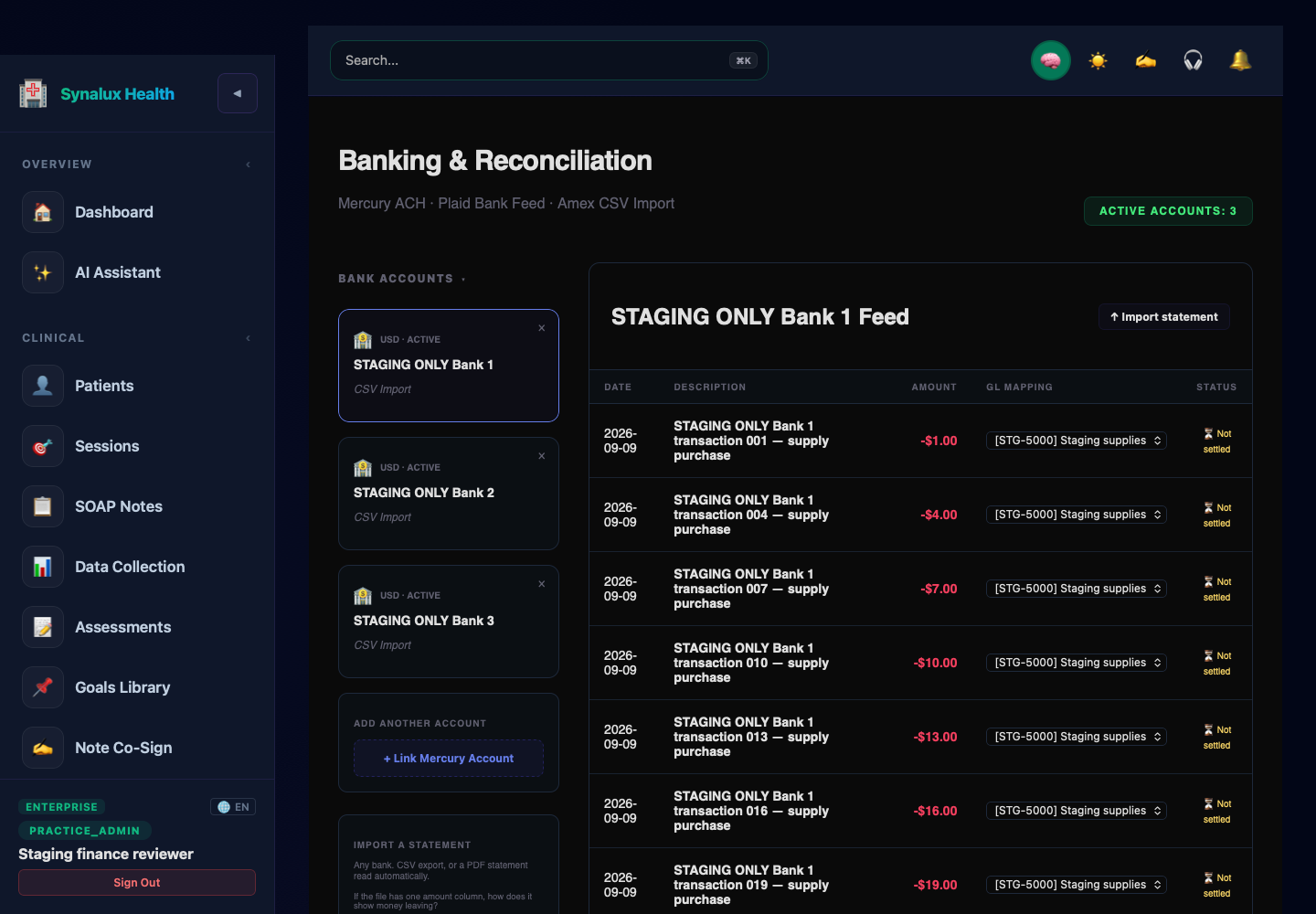
These examples use synthetic records in an isolated local staging environment. They illustrate the screens and are not production financial records, a bank connection demonstration or evidence of a completed reconciliation.
Inventory
Open Inventory to review stock and fixed assets. Search by SKU before creating a duplicate. Use Add Item for a new record or the existing row's edit control to change it. Check the saved item and quantity afterward. Receive brings an open purchase order into stock and records it in the ledger; check Accounting before adding a manual entry. Run Monthly Accrual applies to fixed assets; review the affected records before using it.
Form administration
Open Admin panel → Form Builder and search the form catalog before creating another form. The catalog includes different form families; use the listed owner's editing action for that family. A visual custom-form schema and an application-owned clinical form can have different editors.
For a custom form, review the title, field labels, choices, required settings and preview before saving or publishing. Reopen the saved definition and check the intended patient-facing or staff-facing form. Existing patient assignments can retain their original definition; editing today's template does not mean that every older response changes.
Desktop, tablet and verification limits
On compact layouts, open Navigation from the header. Wide financial tables may require horizontal scrolling. Check the complete row before acting; columns outside the first view still matter.
The screenshots use synthetic staging data. Available actions depend on workspace permissions and connected services. Check the saved record and any external confirmation for the operation you performed.