External assessment results
Use this workflow to record an assessment completed elsewhere, including its exact reported values and source PDF. For a report with narrative, evidence, clinical review, and signing, start in Assessments. The separate Adaptive Assessment Log retains structured score submissions and their history.
Record results in an assessment document
- Open Assessments, select Start Assessment, and choose External report or PDF.
- Use Find patient, select the participant, and set Assessment date, then select Create assessment draft.
- In External assessment results, enter instrument, edition, form, examiner, administration date, respondent, relationship, and language as applicable.
- Select Add score row. Enter Area, Metric, Exact publisher value, Unit, Confidence interval, and Percentile from the source report. Leave unreported values blank and retain qualifiers as written.
- In Evidence and source documents, choose Upload source PDF or Link patient document. Open the linked PDF to check the source.
- Complete the assessment narrative, interpretation, limitations, and author details. Save draft, then follow the assessment review steps.
Score entry uses ordinary fields; JSON is not required for this workflow. Synalux stores supplied values and does not calculate norms, convert scores, or administer the source instrument.
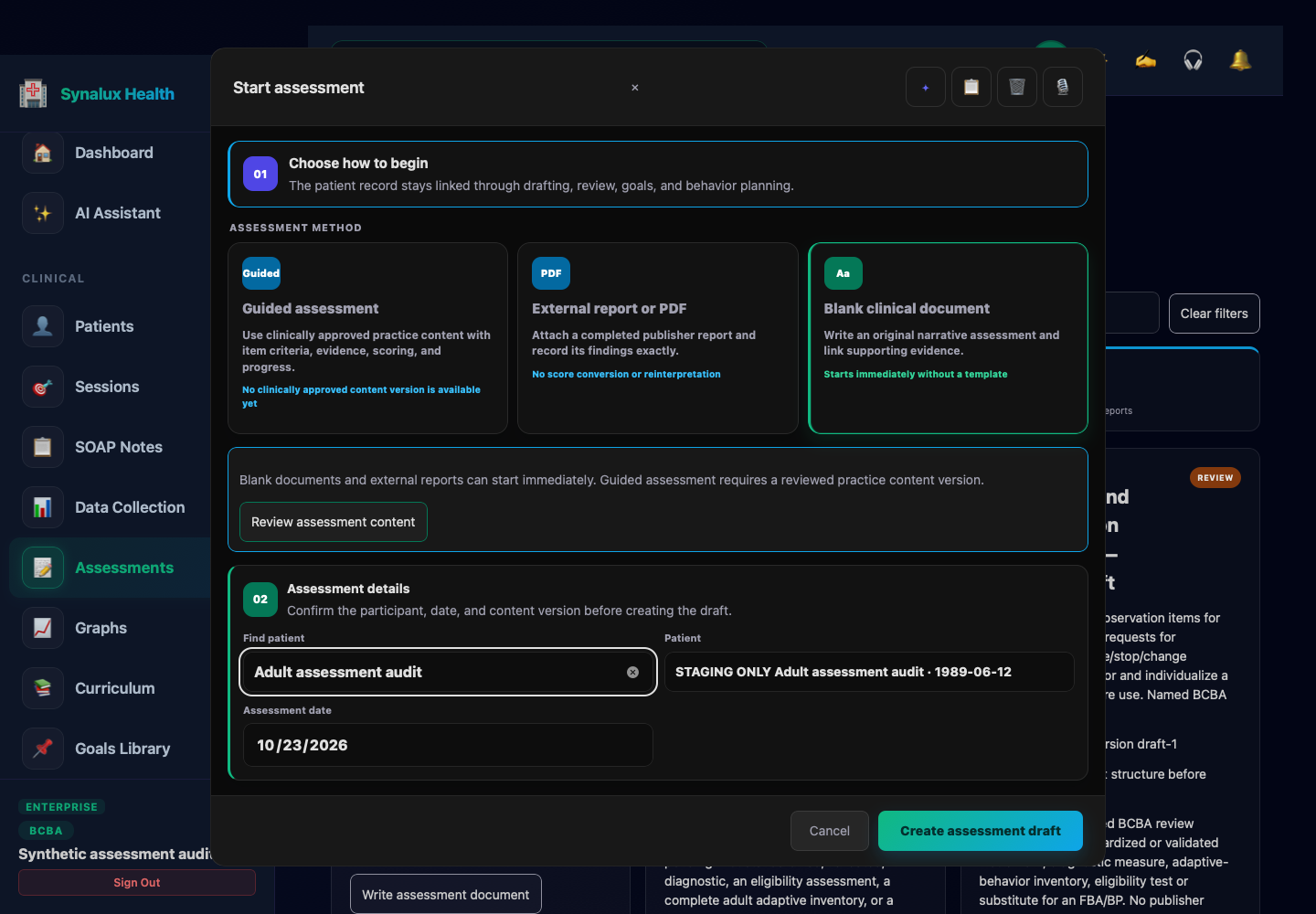
Open desktop screenshot at full size · Open tablet screenshot at full size
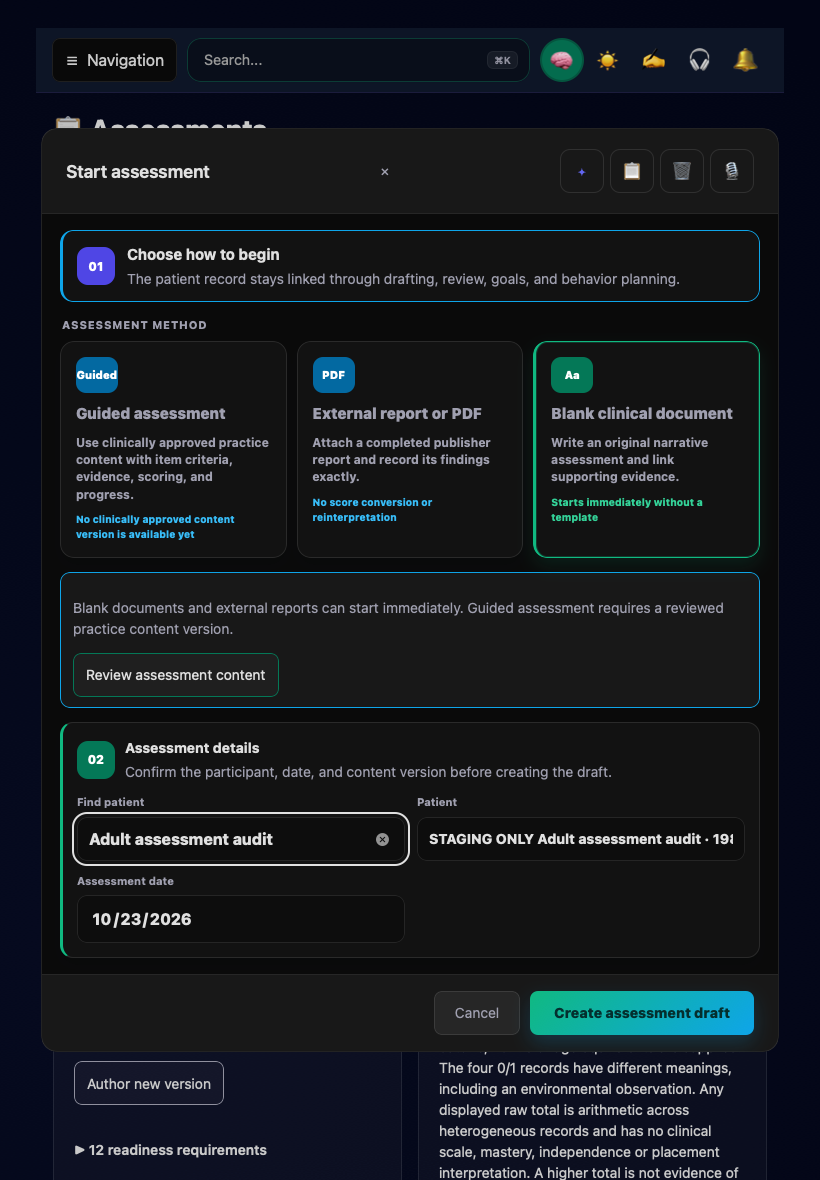
Synthetic records in an isolated local staging environment. Blank clinical document is selected. Guided assessment is unavailable in this workspace because no clinically approved content version is available; this illustration does not approve assessment content. Choose External report or PDF to record a completed external assessment.
When working inside a saved draft, use ← Assessments to return to the list before starting another assessment.
Use the separate score log
Open the Adaptive Assessment Log form. The default form requires a full Client ID, not the abbreviated ID ending from the patient list. Use the participant identifier from the chart address, then record the administration and source details and complete the available composite and score-row fields. For a searchable patient selector, use the assessment-document workflow above. Domain, subdomain, and comparison sections use Add score row. Attach the source file with the form's upload control, then select Submit Form. Use Load prior submissions to check the saved record. View / correct and Correction reason create a linked correction while preserving the original.
Practice administrators can customize this form, so field labels can differ. If an older submission displays Stored rows could not be read, preserve the record and ask the administrator to resolve its format before editing; do not replace unreadable results with an empty submission.
Use results in an FBA or BIP
Download the reviewed assessment report and upload it under the plan's Evidence section, or link the existing participant document there. Record its date, source, and applicable observation context, then connect the evidence to your hypotheses and interpretation. See Adult FBA and BIP.
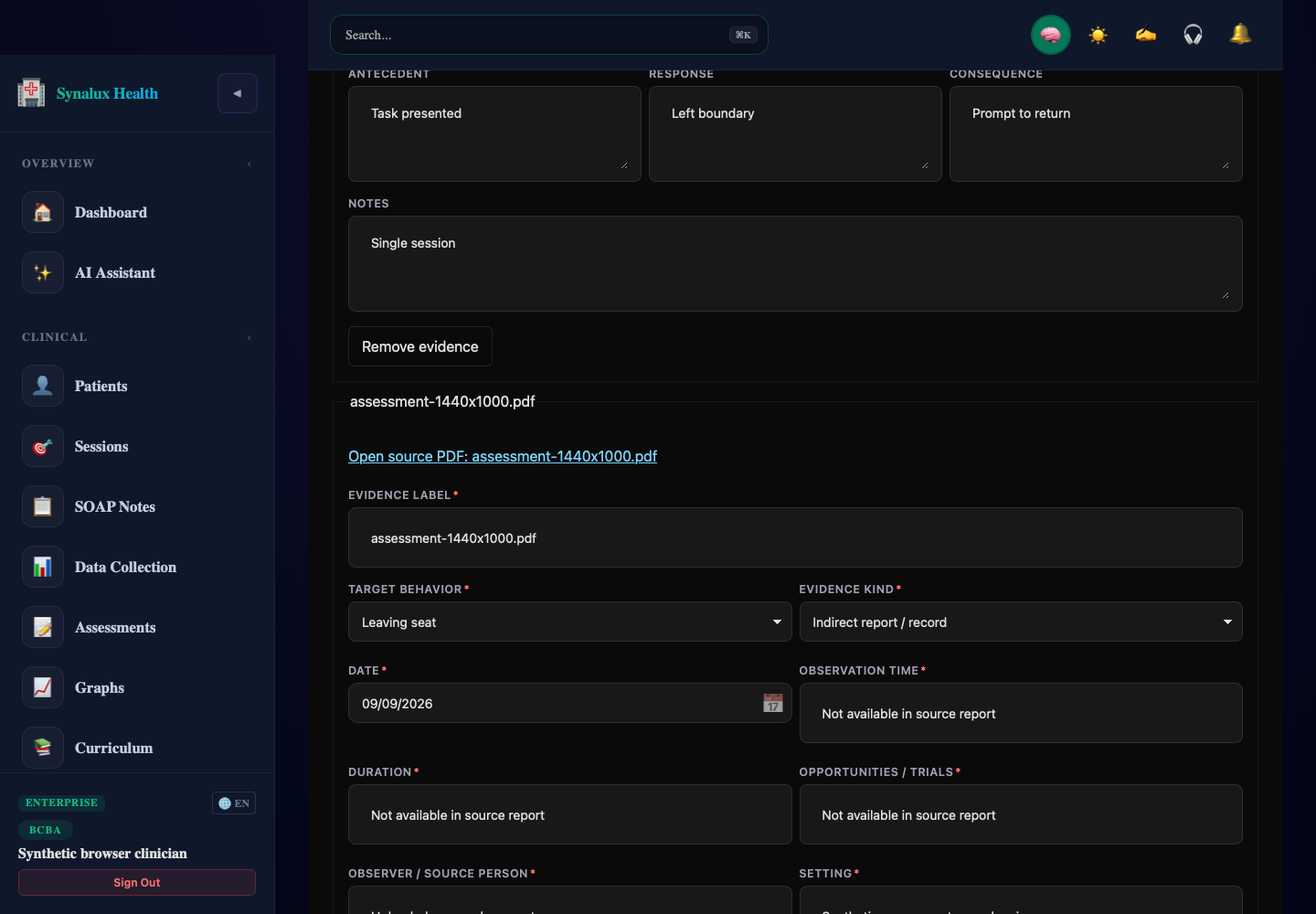
Synthetic staging example showing the source PDF link. Values and interpretation for a real participant must come from that participant's evidence.